How do I make our changes live?
Last updated 17 October 2026
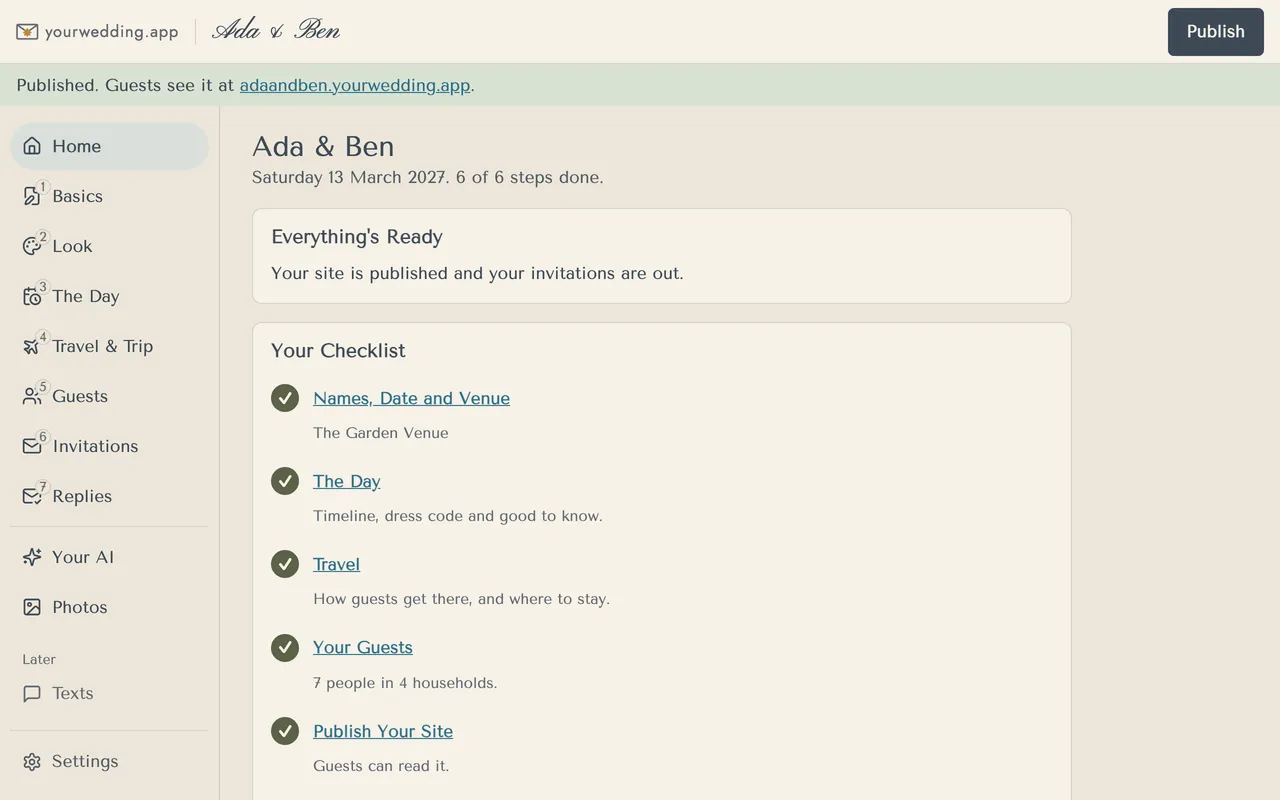
Press Publish at the top of the studio. Saving alone never changes your live site.
- Check the preview looks right.
- Press Publish at the top right.
- You'll see "Published. Guests see it at …" with your address.
Publish again after every change you want guests to see.
On the free package, your site shows a "Preview" ribbon, isn't shown in search engines, and uses the Classic look. After you pay, publish again to remove the ribbon.
More in Your website
- Where do I put our names, date and venue?
On Basics. Nothing goes live until you publish.
- How do I change how our site looks?
Pick a style on Look. Each style comes with matched fonts and colours, by day and by evening.
- Can I change the fonts and colours?
Yes, on a paid package. Open Fine-tune fonts and colours on Look.
- What is a scene, and how do I pick one?
A scene is the drawn picture of your venue on your invitation email and site. Pick the one closest to your place.
- Our venue isn't in the scenes. Can you draw it?
You can ask us to, on a paid package. We read every request, and we'll email you if we add it.
- How do I add the timeline for the day?
On The Day. Add your times, and we add golden hour and sunset for you.
- How do I add travel, coaches and places to stay?
On Travel & Trip. What you add here also shapes the reply questions and the lists you get back.
- How do I see what guests will see?
Look at What Guests See on the right of each editing screen. It shows your draft, before you publish, as a guest sees it.
- Can we use our own domain?
Yes, on Wedding or Pro. You add two records where you bought the domain, then we set it up.
- Can we change our web address?
You choose your web address during setup. It uses 3 to 40 lowercase letters, numbers and single hyphens.
Still stuck?
Open Help in the studio and choose Contact us. We email you a reference. Can’t sign in? Email us instead.
Contact us in the studioEmail hello@yourwedding.app
Guests: please ask the couple first.