How do I tag guests in photos?
Last updated 17 October 2026
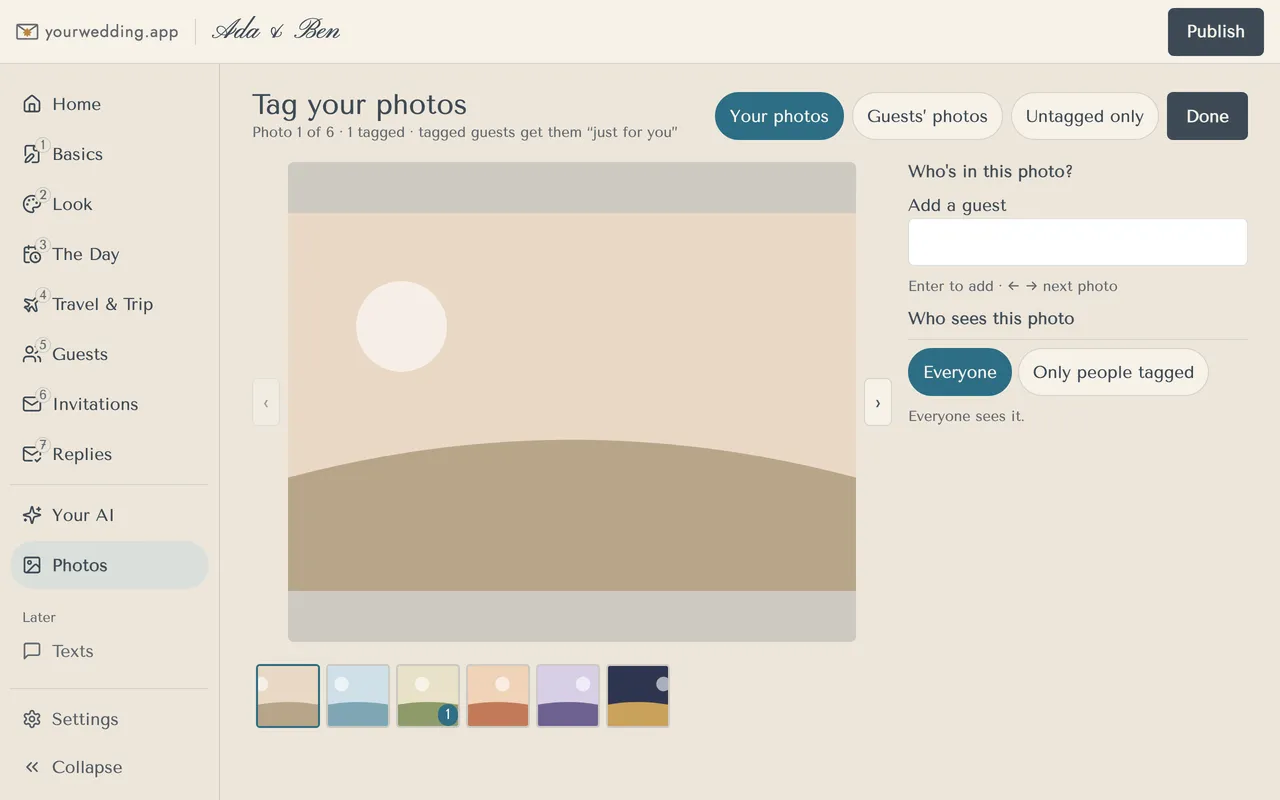
Press Tag your photos and add guests to each photo. Tagged guests find them under "Just for you".
- Open Photos and press Tag your photos, or Tag guests' photos.
- Under Who's in this photo?, type a name in Add a guest and press Enter.
- Use the arrow keys to move to the next photo.
- For your own photos, choose who sees each one: Everyone or Only people tagged.
- Press Done.
Tags save as you go.
More in Photos
- How do guest photos work?
From your wedding day, guests add photos and videos from their phones to your Photos page. You can share your own photos with them too. Photos come with a paid package.
- When can guests add photos?
From midnight at the start of your wedding day, until we delete guest details. Times follow your wedding's time zone.
- How do guests find the photos page on the day?
Print the table card. It has a QR code to your Photos page.
- Where do I see what guests shared?
Under Guests' photos on the Photos page.
- How do I hide a photo?
Open the photo and press Hide from guests. You can restore it any time.
- How do I share our photographer's photos?
Add them under Your wedding photos. They sit at the top of the guests' Photos page.
- Can we show photos on a screen at the reception?
Yes. The slideshow shows guests' photos and your own, live, eight seconds each. New photos show next.
- How do I download everything?
Press Download everything on Photos. We make a zip and email you when it's ready, usually within an hour.
Still stuck?
Open Help in the studio and choose Contact us. We email you a reference. Can’t sign in? Email us instead.
Contact us in the studioEmail hello@yourwedding.app
Guests: please ask the couple first.